When You Drive, You Are Temporarily Disabled
When you drive, you are technically disabled. Not permanently, and not in the way we usually mean the word, but functionally, for the length of the trip, you are.
Your vision is limited: your eyes belong on the road, you get two-second glances at a screen, in glare, at arm's length. Your motor control is limited: both hands belong on the wheel, you have at most one free hand, and you cannot do precise taps or type. Your hearing is limited: road noise, engine, and music mask alerts and speech. Your attention is limited: it is already spent on traffic, and you cannot read a paragraph or compare options.
That is the classic definition of a situational disability. Microsoft's inclusive design model puts it alongside permanent and temporary disability: same limitation, different duration and cause. A person with low vision lives with limited vision every day. A driver lives with it for 30 minutes, because the road demands it. The design answer is the same in both cases: do not require the ability the person does not have right now.
That is my thesis here: adding CarPlay support to your app is not adding a car feature. It is making your app accessible to a user who, while driving, cannot see, touch, hear, or think the way they normally do. An app without CarPlay does not just miss a platform. For a driver, it is effectively unusable - or usable only by picking up the phone, which is unsafe, and in many places illegal.
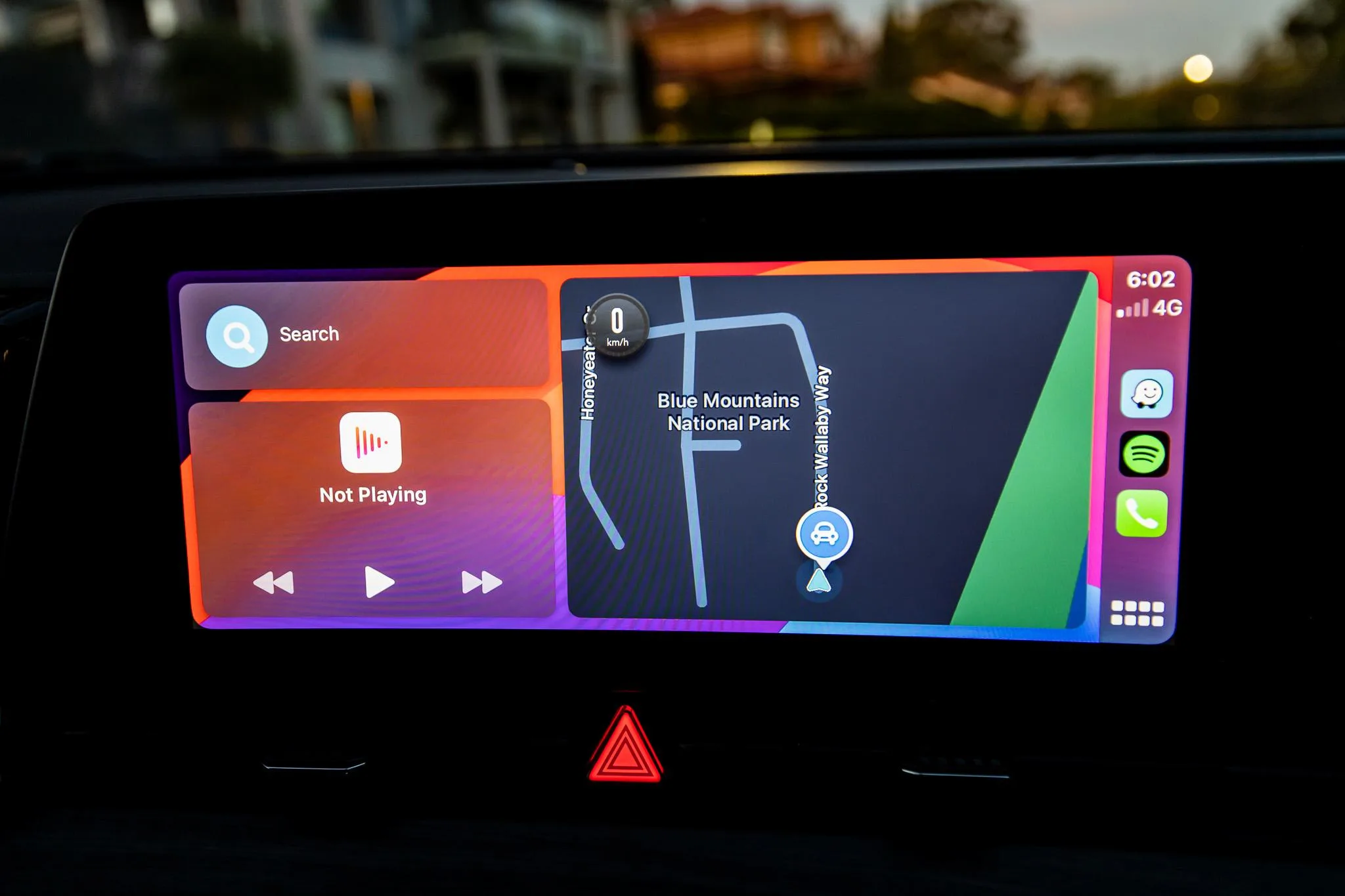
Four Limits, at Once
It helps to name the four limits separately, because each one maps to a different CarPlay answer.
Vision. You cannot stare at a screen. The guidance behind CarPlay is a single glance of no more than two seconds, and about 12 seconds of total eyes-off-road time for a complete task. The answer is glanceable design: large type, high contrast, short labels, no dense screens.
Motor. You cannot tap precisely, scroll a long list, or type. You have one hand, briefly, and a steering-wheel button. The answer is large touch targets, shallow navigation, and a voice path that replaces touch altogether.
Hearing. You can miss a horn, a siren, or a notification under road noise. The answer is a parallel channel: if it is only audible, show it visually; if it is only visual, say it aloud.
Cognition. You cannot hold a multi-step flow in working memory while also tracking traffic. The answer is one task at a time, predictable order, and no choices that need comparison while moving.
None of this is new to accessibility. It is universal design, applied to a moving car. The only difference is that in a car, every user hits all four at once.
The Car Sets the Rules
CarPlay is not a smaller iPhone. Apple only allows a small set of app categories - audio, communication, navigation, EV charging, fueling, parking, quick food ordering, driving task, public safety, and, since iOS 26.4, voice-based conversational apps - and every app is built from the same system templates.
You do not draw your own interface. You fill a list, a grid, a map, or a now-playing screen, and the system decides the type size, spacing, contrast, and touch-target size. Template depth is capped too, typically five levels for audio, communication, and navigation, three for fueling and voice apps, two for driving-task and food-ordering apps.
That constraint looks limiting from a product point of view. From an accessibility point of view, it is the point. Large targets, short labels, shallow navigation, and no endless scrolling are the same things that help a person with low vision, limited dexterity, or a cognitive load that is already full. CarPlay does not invent a new kind of accessible design for drivers. It enforces the accessible design we already know, because the car leaves no other option.
What Is Actually in the Accessibility Menu
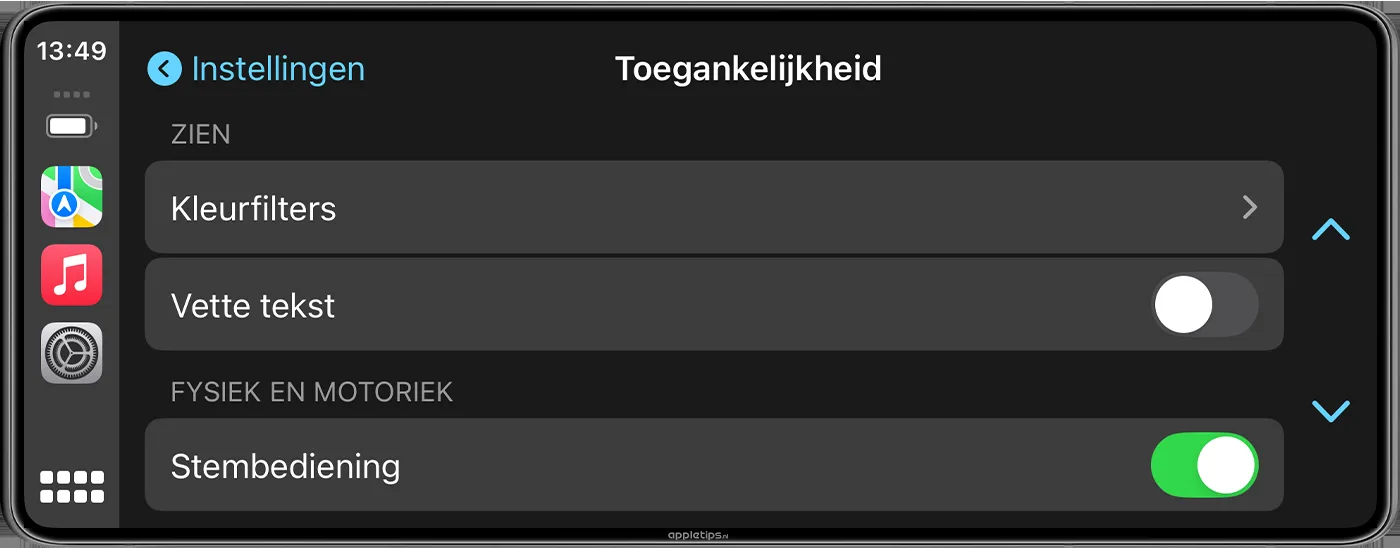
CarPlay has its own Settings app, with its own Accessibility section. The tools there arrived mostly with iOS 18, and a few more came with iOS 26.
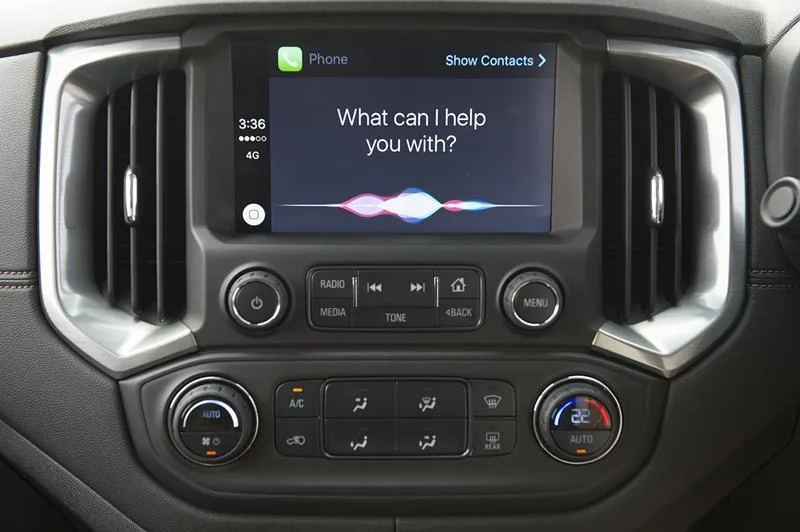
Siri, for getting things done. "Navigate home", "Call Dariia", "Read my last message". Siri completes the request. It is the primary voice path in the car.
Voice Control, for operating the screen itself. This is a different tool from Siri, and the distinction matters. Siri acts on your behalf. Voice Control lets you drive the menus by voice instead of by finger: "Open Maps", "Pan left", "Go back", "Open Siri". Turn it on in CarPlay under Settings > Accessibility > Voice Control. Treat it as a supplement, not a replacement: it uses fixed commands, so it can fail on a natural phrasing that Siri would understand. Try it parked first.
Sound Recognition, for what you cannot hear. With it on, the iPhone listens on-device for car horns and sirens and shows a notification on the CarPlay screen when it detects one. iOS 26 adds a crying baby inside the vehicle. It is designed for deaf and hard-of-hearing drivers and passengers, and Apple is explicit: do not rely on it where you may be harmed or injured, or for navigation. It is a supplementary awareness layer, not a substitute for mirrors or attention.
Text Size, Large Text, Bold Text, and Color Filters, for reading at a glance. iOS 26 adds a Large Text option to CarPlay. Bold Text thickens characters system-wide. Color Filters cover grayscale and filters for deuteranopia and protanopia. They are stackable, and separate from the iPhone's own settings. Test them on your own dashboard, in daylight and at night.
Two more settings help just as much. In iPhone Settings > General > CarPlay, move Maps, Phone, and Music to the first screen. And turn on Driving Focus, which can start automatically when CarPlay connects, filtering notifications while you drive.
So What Does Adding CarPlay Support Actually Do?
Put yourself on the developer side. Your app works fine on iPhone. A driver opens it in the car. What happens?
Without CarPlay support, nothing accessible happens. The app still assumes the abilities the driver does not have right now - full vision, two free hands, quiet hearing, free attention. The only way to use it is to pick up the phone. The feature exists, but for that user, in that moment, it might as well not exist.
With CarPlay support, you do not port the whole app. You surface one driving task, in a form that fits the situational disability: a template the system renders large and glanceable, a Siri path that reads and replies by voice, a list shallow enough to finish in two-second glances.
Messaging is the clearest example. Without CarPlay, reading and replying requires the phone. With CarPlay, Siri reads the message aloud and you reply by dictation, hands on the wheel, eyes on the road. WhatsApp shipped a native CarPlay interface in April 2026; that is the difference it makes, in one feature. The same logic holds for audio, navigation, and calling: the core task stays available when the user's abilities are temporarily reduced, and everything else stays on the phone for later.
That matters doubly for people with a permanent disability. A driver with low vision, limited dexterity, or hearing loss does not stop having that disability when they get in the car. The situational limits stack on top of it. CarPlay support does not remove the permanent barrier, but it removes the extra, situational one.
Two honest limits. First, not every app can be on CarPlay. Apple grants an entitlement per category, and categories are narrow. If your app does not fit one, do not force it. The accessible alternative is still voice-first: Siri Intents, Shortcuts, and Announce Messages, so the core task can be done without the screen. Second, CarPlay support is not a checkbox. A template five levels deep, or a voice path that fails on natural phrasing, still leaves the driver picking up the phone. Ship the one task, test it by voice, and leave the rest parked.
Lessons for Builders
I have built for CarPlay scenes, with a separate CPTemplateApplicationSceneDelegate alongside the main window scene, and an Intents extension handling calls. That split is where a lot of accessibility bugs live: a call that works from the phone but not from the car, a template that pushes one level too deep, a label that makes sense on iPhone and reads as noise on a dashboard.
A few principles I take from that work, and from my day-to-day work on messaging:
- Design for the road, not for feature parity. Surface only what helps a driver in motion. Leave account management, settings, and browsing on the phone.
- Let the system own the pixels. Use the provided templates. The system handles type size, contrast, and target size consistently across every car display, and that consistency is an accessibility feature.
- Make voice the first-class path, not a fallback. If a task cannot be done with Siri or Voice Control, it is not really a driving task. Test it by voice first, then by touch.
- Treat sound and text as parallel channels. A horn alert that is only audible excludes a deaf driver. A navigation cue that is only visual excludes a low-vision driver. Ship both, and make sure they agree.
- Test on a real car, not just the simulator. Glare, road noise, steering-wheel controls, and a head unit that lags half a second change everything. A template that passes review in Xcode can still fail in a driveway.
These are the same principles I wrote about in Accessibility-by-Design in Messaging Platforms and Responsible AI for Accessible Communication: predictability, on-device processing where it matters, and human control over automation. In a car, a spoken message that arrives late is a missed turn, and a voice command that needs the cloud is a feature that fails in a dead zone.
Closing
If CarPlay support is just a car feature, it is easy to defer: nice to have, small audience, do it later. If you see the driver as temporarily disabled - limited vision, limited hands, limited hearing, limited attention - then CarPlay support is accessibility work, and deferring it means leaving a user with no accessible way to do the task at all while driving.
If you build for iOS, try this test on your next feature: can it be used, start to finish, by someone who right now cannot look, cannot tap precisely, cannot hear clearly, and cannot think about anything but the road? That is your driver. If the answer is no, the fix is rarely a bigger button. It is usually a shorter task, by voice, in a CarPlay template.